How to work with Real-Time data plugins
One-time setup
In order to use AmiBroker with any real-time data source, you have to set
up the database with the appropriate data plugin first. This is required only
once during database creation. Instructions for setting up are available
here: eSignal, myTrack, IQFeed, QuoteTracker.
Adding symbols
Now you can add symbols to your database. To do so, please go to Symbol->New menu.
In the 'add symbol' dialog, enter one or more tickers (comma-separated) you wish
to add to your database. If you want to see the chart for a newly added symbol,
just select it from the Symbol tree in the workspace window. Please allow a few
seconds (depending on the speed of your Internet connection) to backfill historical
data.
You may add more tickers than your RT account allows. AmiBroker
will automatically switch/update/refresh symbols, so the most recently used
symbols are active and older ones are automatically removed from the Data Manager.
Doing so, however, may lead to some problems if you exceed your subscription
limits significantly. So it is advisable to use this feature responsibly and not
expect to get 500 symbols when your subscription is limited to only 50.
Note that the above mechanism does not apply to the Real-Time Quote window, and it
cannot hold more symbols than your subscription limit.
Showing Real-Time Quote Window
|
AmiBroker RT features a real-time watch window, which allows
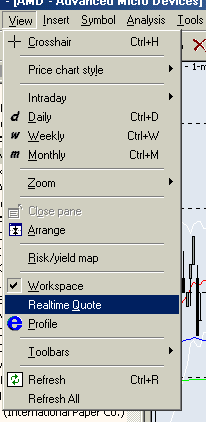
you to watch streaming quotes. To show this window, choose the Window->Realtime
Quote menu option. (see image to the right ---->)
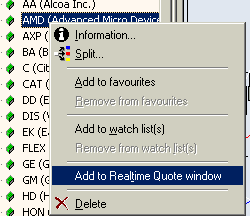
To add symbols to the Real-Time Quote window, you either double-click on
the symbol tree or use the right-mouse-button menu's 'Add to Real-Time Quote'
option, as shown in the picture above.
|
 |
Working with Real-Time Quote Window
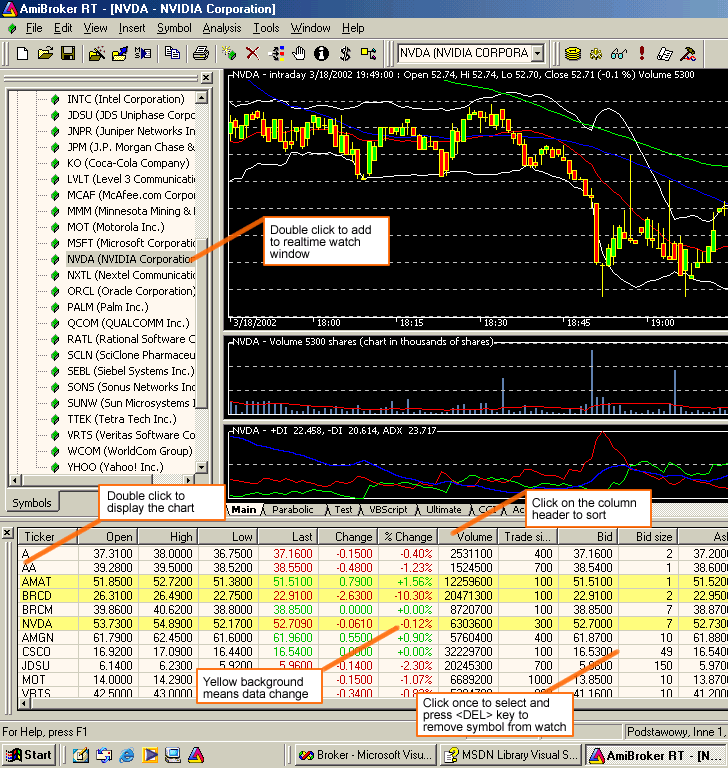
The RT Quote window provides real-time streaming quotes and some basic fundamental
data. It is fairly easy to operate, as shown in the picture below:
You can also display a context menu by pressing the right mouse button over the RT
Quote window.
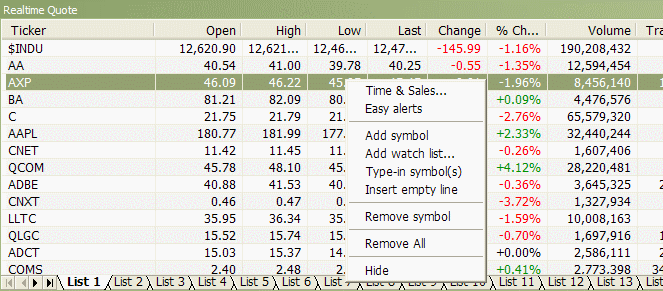
The context menu allows you to access the following options:
- Time & Sales
Opens Time & Sales window, which provides
information about every bid, ask, and trade streaming from the market.
- Easy Alerts
Opens Easy Alerts window, which provides a way
to define real-time alerts executed when bid/ask/last and other fields hit
user-defined levels.
- Add Symbol
Adds the current symbol to the Real-Time Quote list.
- Add Watchlist...
Adds the entire watchlist to the Real-Time Quote window.
- Remove Symbol
Removes the highlighted line (symbol) from the Real-Time Quote list.
- Remove All
Removes all symbols from the Real-Time Quote list.
- Hide
Hides the Real-Time Quote list.
Bid/Ask Trend Indicator

Version 5.90 adds Bid/Ask trend - a graphical indicator showing the direction
of the 10 most recent changes in real-time bid/ask prices. The right-most box is
the most recent, and as new bid/ask quotes arrive, they are shifted to the left.
Color coding is as follows:
- Dark green: bid > previous
bid OR ask > previous ask.
- Bright green: bid > previous
bid AND ask > previous ask.
- Dark red: bid < previous
bid OR ask < previous ask.
- Bright red: bid < previous
bid AND ask < previous ask.
- Red / Green box: ask < previous
ask AND bid > previous bid.
- Green / Red box: ask > previous
ask AND bid < previous bid.
If bid/ask prices don't change, there is no new box. NOTE: This column works
only if real-time quotes are streaming (markets are open).
Working with intraday and daily charts
If your data source supports mixed EOD/intraday mode (such as
eSignal or IQFeed), you can use a single database for both types of charts.
However, if your data source does not support mixed EOD/intraday
mode, and if you want to have long daily histories AND intraday charts, you should
consider running
two
instances
of
AmiBroker:
one
for EOD
charts
and a second for intraday charting. Both may use the same real-time data source.
Connection status display
The data plugin connection status is displayed in the plugin status display area,
located in the lower-right part of the AmiBroker main
window, as shown in the picture below. When the connection status changes, AmiBroker
plays
a beep sound and pops up a bubble tooltip to inform about the status change.
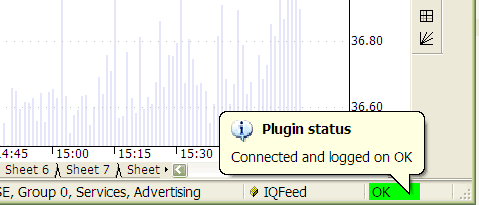
The bubble tooltip provides more detailed information text and
disappears automatically after two seconds.
If you want to re-display it, just hover your mouse over the plugin
status display area.
To enable quick examination of connection status, AmiBroker displays
color-coded information:
- OK (green light) means that the connection is OK and indicates
correct operation of the plugin.
- WAIT (yellow light) means that the connection
is being set up right now, or the
plugin is connected only partially (to a few of many servers). Usually, this
state is transient, and within a few seconds, the status comes back to "OK".
- ERR (red light) means that the connection is broken. It may
mean an invalid username/password for your subscription, or the fact that some
third-party component/program required is not running (for example, if QuoteTracker
is not running and you are using the QuoteTracker plugin). This state usually
requires some user intervention, such as checking/fixing the username/password in
File->Database Settings->Configure or running the required component. When you
fix the reason, the plugin will automatically attempt to reconnect (and
if reconnection is successful, then "OK" will be displayed).
- SHUT (purple light) means that some serious problem occurred,
and the plugin will not attempt to reconnect automatically. In most cases, you
have to first fix the problem that caused this state and then reconnect
manually using the plugin context menu described below. Alternatively, you can
just restart AmiBroker.
Using plugin context menu
Real-time plugins provide some additional controls via the plugin
context menu. This context menu is available when you click with the right mouse
button over the plugin status display area. If you do, a menu like this will
be displayed:
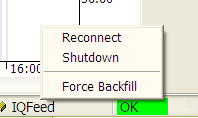
Please note that various plugins offer various options in this menu; however,
most plugins provide at least three basic and useful options:
- Reconnect - This option allows you to reconnect manually.
Most RT plugins attempt to reconnect automatically, but sometimes manual
reconnection is necessary.
- Shutdown (Disconnect) - This allows you to shut down the RT plugin.
This is useful when you want to stop streaming quotes.
- Force backfill - This option causes the plugin to re-download
the entire (intraday) history from the server. Usually, the plugin automatically
handles all backfills, so you don't need to trigger backfills by hand. If
the plugin detects that you have some missing quotes from the last available
bar until the current date/time, it triggers backfills, and it is all automatic.
But... in at least two cases, this option is useful:
- backfilling more bars after a settings change (when you enlarge 'number
of bars to load' in the File->Database Settings dialog, you have to force
a backfill for symbols that were backfilled previously with a smaller number
of bars)
- cleaning up bad ticks (when you see a bad tick, you may try forcing
a backfill in the hope that the data vendor has cleaned up its database and you
will get fixed data - works well for eSignal, which really appears to fix
bad ticks after they happen).
Things you should NOT do, or you should do very carefully
You should note the fact that when you are using a data plugin, then the plugin
controls the quotation database (see the Understanding Database Concepts
article); therefore, you should NOT import quotes from ASCII files (this includes AmiQuote)
for symbols that are already present in the real-time database.
If you do, the plugin will eventually overwrite your imports with the real-time
data, or your database will become corrupted (if you import end-of-day data
over an intraday database).
So please do not import ASCII (especially EOD data) into a real-time intraday
database fed by the plugin.
You may ask why this is not disabled at all. The answer is that sometimes
it is useful, and sometimes it will work (but these are rare cases). For example,
it will work if you import INTRADAY data into the intraday database fed by
the QuoteTracker plugin, and both the database and imported data have exactly the
same bar interval.
It also works if you import the data for symbols that are
not present in the database. In this case, newly imported symbols are marked
by the ASCII importer as "use only local database for this symbol" (See the Information
Window for details), so they are excluded from the real-time update.
This is useful if you want to import some other data (even non-quote data)
and access
it via the Foreign function while using your real-time
database.
So ASCII import is not disabled in a real-time database, but you have to use
it with extreme care and know what you are doing.
The second thing is using Quote Editor. Although
data is controlled by the plugin, it is in most cases possible to use Quote
Editor. However, please note that you will be able to edit only one-minute data
or a higher interval, and you will only be able to edit symbols that are backfilled
completely (there is no running backfill for that particular symbol), and you will not
be able to edit the last three bars. This is so because the last three bars
are cached in the plugin. So, you will be able to edit them only when new bars
arrive, making them 'older' than the last three.
'WAIT FOR BACKFILL' feature
The users of eSignal, myTrack, and IQFeed real-time plugins may now
check the "wait for backfill" box in the Automatic Analysis window, and all scans,
explorations, and backfills will wait for completion of the backfill
process for a given symbol. This flag has no effect on databases that do not
use plugins (external data sources) or use end-of-day plugins (like FastTrack,
QP2, TC2000/TCNet, etc.). This flag also has no effect when using the QT plugin
because QuoteTracker manages backfills by itself and does not provide any
control over the backfill process to third-party applications.
BACKFILLING ALL SYMBOLS AT ONCE
To backfill all symbols at once in a data source that supports the "Wait for
backfill" feature (IQFeed, eSignal), one can use the Analysis window. The procedure
is as follows:
1. Open Formula Editor and type a simple single-line
rule, as shown below, and choose Tools->Send to Analysis
Buy = 1;
2. In the Analysis window, select Apply to: *All symbols and Range: one recent bar
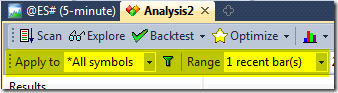
and turn on the Wait for backfill option.
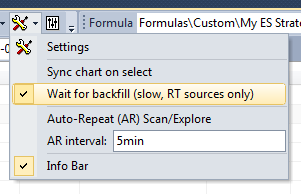
3. Press the Scan button.
The Analysis window will iterate through all symbols, requesting a backfill
for each symbol and waiting until the data arrives; so, at the end of the scan, all symbols
will be backfilled.