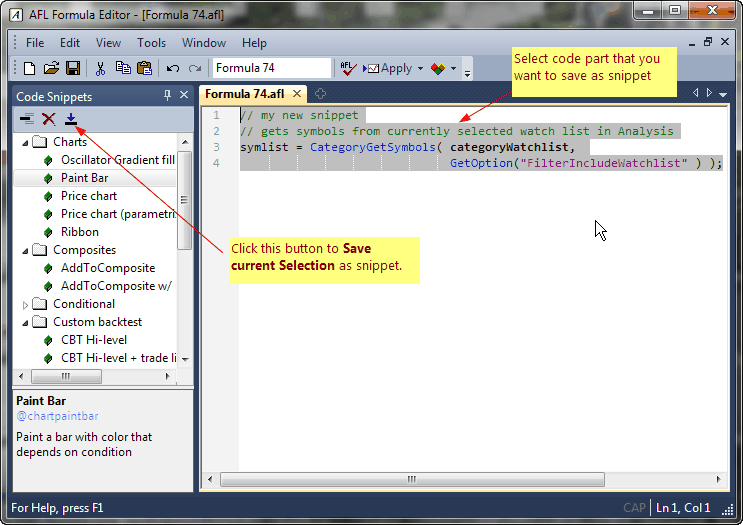
Code snippets are small, reusable pieces of AFL code. Detailed information on the usage of code snippets can be found in this tutorial.
The Code Snippets window is available in the new AFL editor. It can be shown/hidden using the Window menu.
INSERTING SNIPPET
To insert an existing snippet, drag and drop the snippet from the Code Snippets list into the AFL Editor, or double-click on the snippet.
CREATING YOUR OWN SNIPPET
To create your own snippet, do the following:
If you perform the steps above, the following dialog will appear:
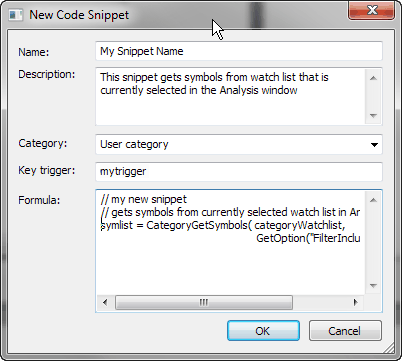
Now you need to enter the Name of the snippet, the Description, and Category. Category can be selected from already existing items (using a drop-down box), or a new category name can be typed in the category field. The Key trigger field is optional and contains the snippet autocomplete trigger (described above). The Formula field is the snippet code itself. Once you enter all fields and press OK, your new snippet will appear in the list.
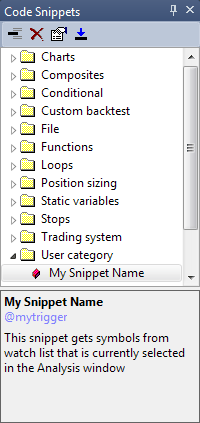
From then on, you can use your own snippet the same way as existing snippets. Perhaps the most convenient method is using drag and drop from the list to the AFL Editor.
As you may have noticed, user-defined snippets are marked with a red color box in the Code Snippets list. Only user-defined snippets can be overwritten and/or deleted.
EDITING SNIPPET
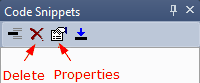
To edit an existing user-defined snippet, you can either follow the steps above and give it an existing name. AmiBroker will then ask if you want to overwrite the existing snippet, or you can simply click on the Properties button and edit the snippet directly, without reinserting it.
DELETING SNIPPET
To delete a snippet, select the snippet you want to delete from the list and press the Delete (X) button in the Code Snippets window.