Formula (chart) context menu
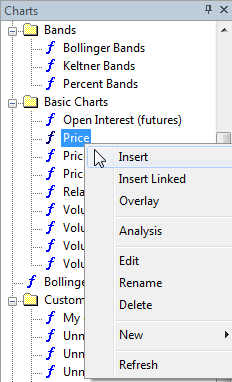 Formula
(chart) context menu appears when you right-click on a formula
listed in the Charts tab of the Workspace pane
(see the picture on the left)
Formula
(chart) context menu appears when you right-click on a formula
listed in the Charts tab of the Workspace pane
(see the picture on the left)
Available choices:
- Insert - inserts the selected indicator into a new chart pane.
Insert command internally creates a copy of the original formula file and
places this copy into a hidden drag-and-drop folder so the original formula will not
be affected
by subsequent editing or overlaying other indicators onto it.
Double-clicking on a formula name is equivalent to choosing the Insert command
from the menu.
- Insert Linked - inserts the selected indicator into a new chart pane directly
(i.e., linked to the original).
Insert Linked command does not create any copy of the formula. Instead,
it creates a new chart pane that directly links to the original formula. This way,
subsequent editing and/or overlaying other indicators will modify the original.
- Overlay - overlays the selected indicator onto the selected chart pane.
Overlay command internally appends additional code to the formula used by
the chart pane. If the given chart pane was created using Insert Linked, it will
modify the original (linked) formula.
- Analysis - opens the Automatic Analysis window and selects the formula.
- Edit - opens the Formula Editor window to edit the selected formula.
- Rename - renames the currently selected formula file.
- Delete - deletes the currently selected formula file.
- New
- Formula - creates a new formula file in the currently selected folder
- Folder - creates a new subfolder under the currently selected folder
- Refresh - re-reads the Formula directory and re-displays the formula tree.