Using studies in AFL formulas
AmiBroker 3.52 introduces the ability to reference hand-drawn studies from AFL
formulas. This feature is quite unique among trading software, and as you will
find out, using this feature is quite easy.
I will show you an example of how to check if a trend line is broken from AFL
code. All we need to do is follow three simple steps:
- Draw a trend line
- Define study ID
- Write the formula that checks trend line break
Drawing a trend line
|
A trend line is a sloping line drawn between two prominent points on
a chart.
In this example, we will draw a rising trend line that defines the uptrend.
This kind of trend line is usually drawn between two (or more) troughs
(low points) to illustrate price support.
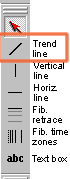
Surely you know how to draw a trend line in AmiBroker - just select
the "Trend line" tool from the "Draw" toolbar, find at least
two recent troughs, and draw the line.
|
|
Defining a Study ID
|
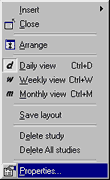
As you probably know, you can modify the properties of each line drawn
in AmiBroker by right-clicking on the study and selecting "Properties" from the menu. The properties dialog
that appears allows you to define exact start/end points and choose line
color, style, and left and/or right extension mode.
For further analysis, we will use the right-extended trend line (click
on the appropriate checkbox) to make sure that the trend line is automatically
extended when new data is added.
|
|
Since version 3.52, the properties dialog also allows you to define "Study
ID" (the combo box below the color box). "Study ID" is a two-letter
code for the study that can be assigned to any study within a chart, allowing
AmiBroker to reference it from AFL. Predefined identifiers are: "UP" - uptrend;
"DN" - downtrend; "SU" - support; "RE" - resistance; "ST" - stop loss. However, you can use ANY identifiers
(there are no limitations, except that AmiBroker accepts only 2-letter codes).
This way, if you draw support lines in many symbols and give them all the "SU"
identifier, you will then be able to reference the support line from AFL code.
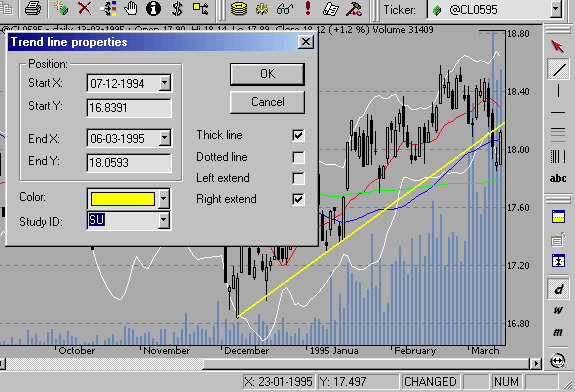
So we will assign the "SU" study ID to the rising support trend
line we have just drawn.
Writing the formula that checks for a trend line break
In this example, we will detect if the closing price drops BELOW the support trend
line. This is actually very simple:
Sell = Cross( Study( "SU", GetChartID()
  ), Close );
Note that the study() function accepts two arguments: the first is the Study ID two-letter code that corresponds to the one given in the properties dialog; the second
argument is the chart ID. It should be taken either via the GetChartID() function (then it refers to the current indicator) or read from Parameter
dialog, Axes & Grid: Miscellaneous:
Chart ID.