How to use AmiBroker with external DDE data source

Note: the most recent version of this document can be found at: http://www.amibroker.com/dde.html. Please check this page for updates.

WHAT IS DDE

DDE (Dynamic Data Exchange) is a Windows protocol used to allow applications to exchange data. For example, when you change a form in your database program or a data item in a spreadsheet program, they can be configured to also update these forms or items anywhere they occur in other programs you may use. DDE uses a client/server model in which the application requesting data is considered the client and the application providing data is considered the server.
Thousands of applications use DDE, including Microsoft's Excel, Word, Lotus 1-2-3, and Visual Basic.

For more information about DDE as a communication mechanism in Windows, please follow this link:
http://msdn.microsoft.com/library/en-us/winui/WinUI/WindowsUserInterface/DataExchange/DynamicDataExchange/AboutDynamicDataExchange.asp

DDE FOR TRADERS

What DDE offers for traders? Essentially, real-time streaming quotes. There is NO BACKFILL via DDE. Many real-time data providers and brokerages provide the ability to get real-time data by means of DDE. You should ask your brokerage/real-time data vendor if they offer a DDE link. The DDE plugin now available for AmiBroker allows linking to (almost) any DDE source (server) supplying real-time quotes. This makes it an attractive option for all data sources that do not have a dedicated plugin.

WHEN NOT TO USE DDE PLUGIN

If you are using eSignal, IQFeed, Quote.com, and any other source that has a dedicated plugin - you should use this dedicated plugin instead of DDE. This is so because dedicated plugins are ALWAYS a better option (provide more features and are faster) than generic DDE.

DDE PLUGIN FEATURES SUMMARY

HISTORY

INSTRUCTIONS

To use DDE data plugin with AmiBroker you need to:

  1. (optional *) Download the latest version of the DDE plugin from http://www.amibroker.com/bin/DDE.dll and copy it to PLUGINS subfolder of the AmiBroker directory.
    *Version 1.2.2 of DDE.DLL (Jun 7, 2007) is already included in AmiBroker 5.00 full setup
  2. Enable DDE in the third-party software you are using as a DDE server (consult data vendor/brokerage software documentation for details on how to enable DDE)
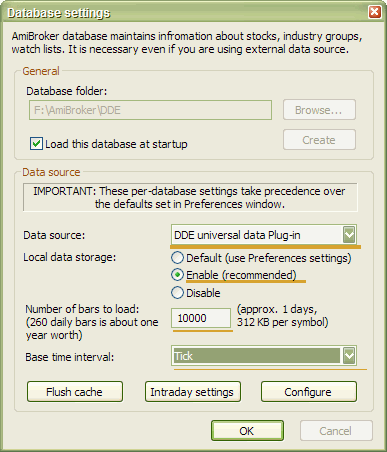
  3. Run AmiBroker and create a new database with "DDE universal data plugin" as a data source, following these steps:

The plugin status indicator should change from Yellow "WAIT" to Green "OK" within a few seconds. If it does not turn to the "OK" state, it means that either:
a) server name and/or fields are not set up correctly
  or
b) DDE server (third-party application) is not running or is not enabled

If the indicator shows "OK" - then real-time quotes flow into AB. You can check it by displaying Window->Real-time quote. Note: Since there is no backfill, you would need to wait for at least 3 bars of data to be collected before a chart shows up.

CONFIGURING DDE PLUGIN TO WORK WITH YOUR VENDOR

Various data vendors use different DDE connection strings; here a few typical examples will be shown.

Most documentation of DDE uses Excel DDE syntax which looks as follows:=SERVER|TOPIC!ITEM

Server is a name of the DDE server such as WINROS, IQLINK, REUTER, CQGPC, MT, MTLink, etc.
Topic is the topic of DDE conversation. Depending on the data source, the topic may be just the ticker symbol (like in IQFeed), or the field name (like in Winros).
Item is the item of DDE conversation. Depending on the data source, it can be the field name (like in IQFeed) or ticker symbol (like in Winros).

So a DDE connection string in two most common standards looks as follows:

=WINROS|LAST!MSFT

=IQLINK|MSFT!LAST

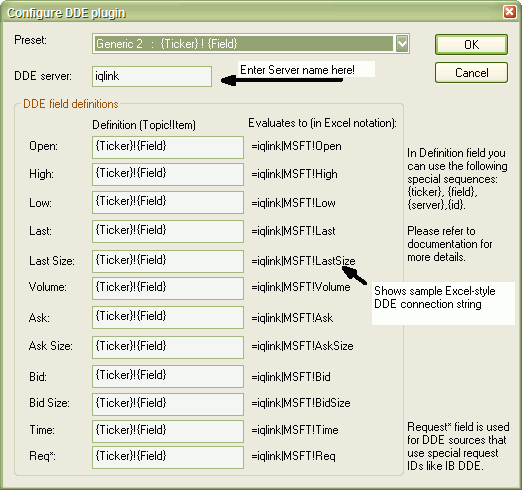
Now DDE plugin configuration screen looks like this:


In the upper part of the dialog you can see "DDE Server" field. In this field you should enter the SERVER part of DDE connection string (=SERVER|TOPIC!ITEM) without the equation mark and without the '|' character.

Below you can see 12 text entry boxes where you can define DDE topic and item for each data field your data source provides. Here you should enter TOPIC!ITEM pair of the DDE connection string (=SERVER|TOPIC!ITEM) with an exclamation mark between the DDE topic and DDE item.

As you can see in the picture above, the DDE plugin allows you to use a few special strings, namely: {Ticker}, {Field}, {FieldSp}, {Server}, {Id} which are evaluated at runtime for each symbol separately, allowing you to construct dynamic DDE strings (depending, for example, on the selected ticker) required by most data sources:

All other texts are carbon-copied, so if you write, for example:

PREFIX_{Ticker }_SUFFIX!MYTEXT

it will evaluate to =SERVER|PREFIX_MSFT_SUFFIX!MYTEXT (provided that current symbol is MSFT)

Next to the field definitions, you can see what each definition will evaluate to (in Excel notation). This makes it easy to verify if the definition is correct.

Sample evaluation always uses "MSFT" as a {Ticker}, and 34 as {Id}.

If your data source does not provide all fields, you can leave a given field empty. Note that for proper operation, the "Last" price (the price of the last trade) is required. If your data source does not provide "last" price (most Forex sources don't have "last") you can force the DDE plugin to use "Bid" instead. For that, you should make the "Last" field blank and provide the appropriate DDE topic!item pair in "Bid" field. Please also note that Topic!Item pairs should evaluate to unique values.

In the top part of the dialog, you can see "Preset" combo-box.

As of now, it allows you to preset the fields using two generic schemes:
a) {Field}!{Ticker} - "last price" evaluates to =SERVER|Last!MSFT
b) {Ticker}!{Field} - "last price" evaluates to =SERVER|MSFT!Last

In the future "Preset" box will contain more presets for various DDE sources that you submit.

A FEW EXAMPLES

Connection examples are shown on the web page: http://www.amibroker.com/dde.html

TEST PLATFORMS

DDE plugin has been tested and it is known to work properly on Windows XP (32-bit DDE) and Windows 9x (16-bit DDE). The following DDE servers are verified by us to work properly:

DDE plugin does NOT work with the following DDE servers:


All other DDE servers not listed above should work properly. Contact support at amibroker.com in case of problems.

HELP US TO HELP others:

In order to help others to configure the DDE plugin for their data vendor, once you succeeded to link with your particular vendor, please drop us a note with a screenshot of the CONFIGURE dialog and the name of the source. This will later be included in this document as a reference on how to use various data sources. Working setups will also be added to "presets" combo for easy, one-click configuration.

NOTES ON DDE PLUGIN:

1. There is NO BACKFILL in the DDE plugin. You can, however, use the ASCII importer (this includes AmiQuote) to import historical data right into the database that you will later update in real-time using the DDE plugin.

2. Change and % change fields are NOT available (yet)

3. Time and Req fields are now ignored (this may change in the future)

4. The current system time is used to timestamp each tick.

5. When your source does not offer "LAST" price (as several Forex sources do) you should make the "Last" field EMPTY in the configuration dialog. This will tell the plugin to use the "BID" field instead.

6. Plugin status (connected/disconnected) always initially comes up in the "Wait" state (Yellow indicator). It means that no DDE conversation has been established. If at least ONE DDE conversation starts successfully, it will turn to the "OK" state (green indicator). If the DDE server was not running at the first attempt to connect, the plugin will NOT attempt to reconnect automatically. Instead, you should force reconnection manually (see point 7). The indicator may turn to "Disconnected" (red indicator) only in two cases:  
a) you were connected properly, but the DDE server (third-party app) has been closed 
b) you selected "Shutdown" from the plugin status menu

7. You can reconnect at any time by selecting "Reconnect" from the plugin status menu.